
Global filters are available in the same place no matter which page you navigate to and stay persistent as you navigate around Mosaiq. These filters include:
-
Date range, and any exclusions that have been applied (1)
-
Derived shapes, if available (2)
-
Time range (3)
-
Operators/services selected (4), and
-
Areas, if available (5)
Whilst the areas filter is located at the top of every page (next to the tenant selector), all other global filters are available in the global filter panel and hub (6).
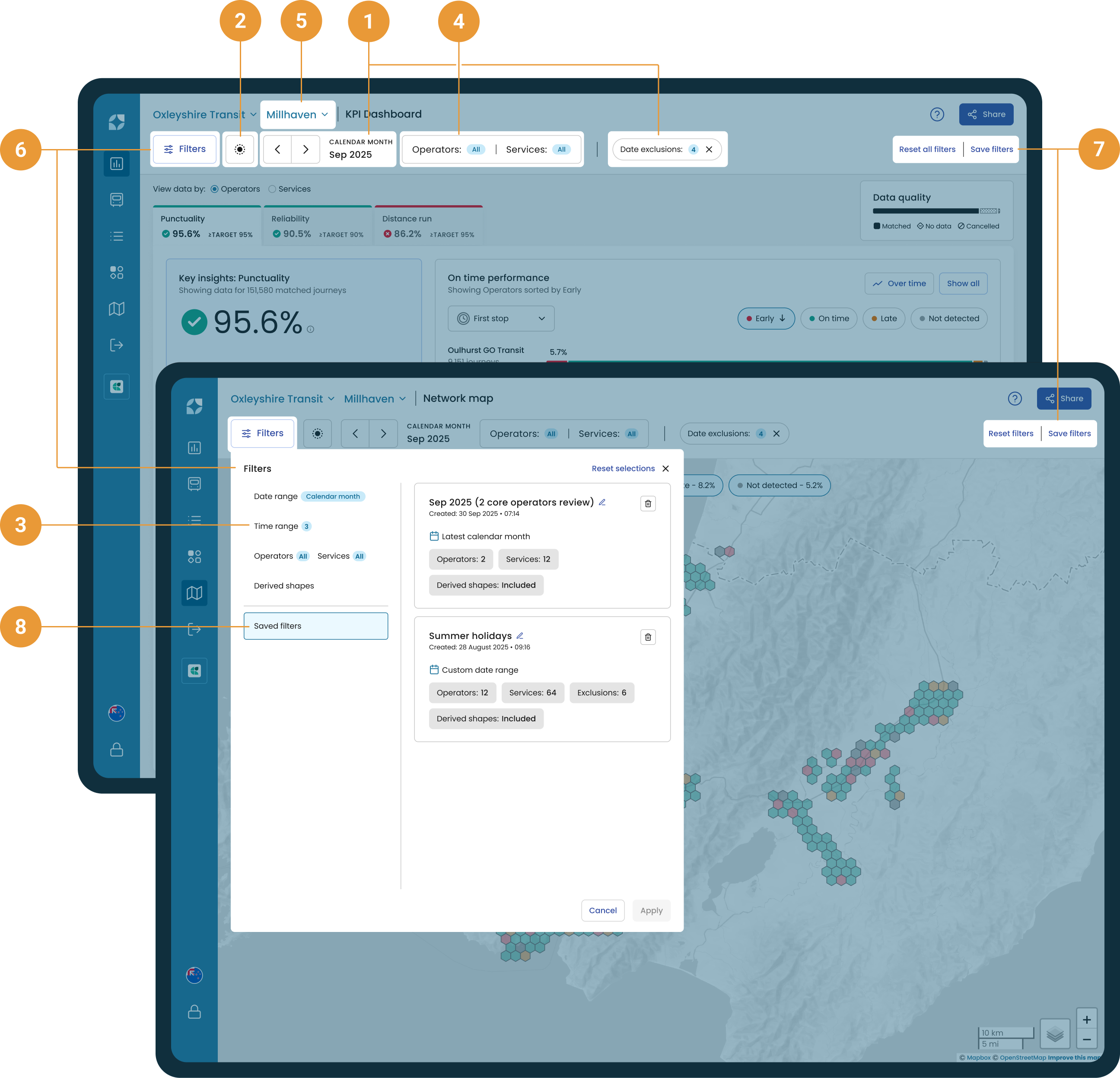
The Save filters button is available throughout Mosaiq Insights and can be accessed in the filter panel (7). It allows you to store your global filters for future usage. Any saved filters can be accessed within the filter hub (8).
Global filters are not accessible on the Journey view since you are viewing a single trip.
Global filter panel

The global filter panel looks the same on all pages and contains the following:
-
Filters button - opens the the filter hub (1)
-
Derived shapes - indicates if derived shapes are included/excluded. Click the icon to open the filter hub to the derived shapes section (2)
-
Date - displays the selected date range. Open the filter hub to modify the selected date range (3)
-
Operators/services button - opens the operators/services menu item of the filter hub. The number of operators and services selected is shown (4)
-
Reset & save filters - filters can either be reset or saved directly within the panel (5)
The Date and Operators/Services filters will always be displayed in the filter panel. Additional global filters, such as date exclusions, will become visible as chips once applied (6). These chips can be removed at any time by clicking the “x”, or edited by clicking on the chip.
Global filter hub
The global filter hub is accessible on every page via the global filter panel. It contains all global filters available in Mosaiq.
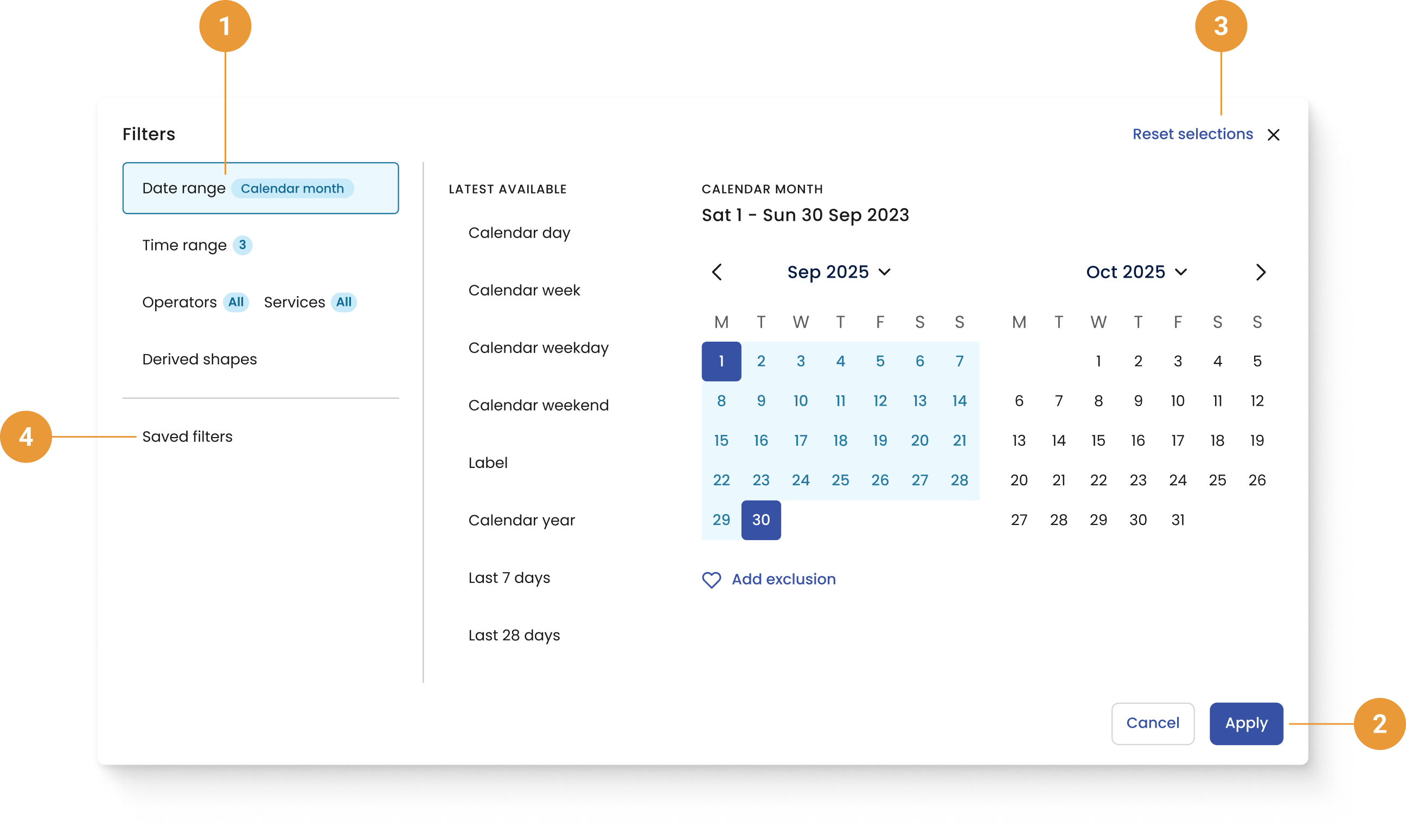
Each global filter is accessible within the filter hub menu tabs (1). Once you’ve made your filter selections you can Apply (2) or Reset selections (3) if you need to revert back to default filter settings in the hub. The filter hub menu tabs also have an option to view and apply your Saved filters (4).