
View the performance data either by operators or services (1) and choose which operators and services to include in the operators/services filter hub (2), also accessible within the filter panel (3). The operators and services selected stay persistent as you explore Mosaiq Insights.
Note that any selection of operators and/or services from within the filter hub will influence what operators / services are available to be selected from within the refine page panels available on Service details, Journeys and Running times pages.
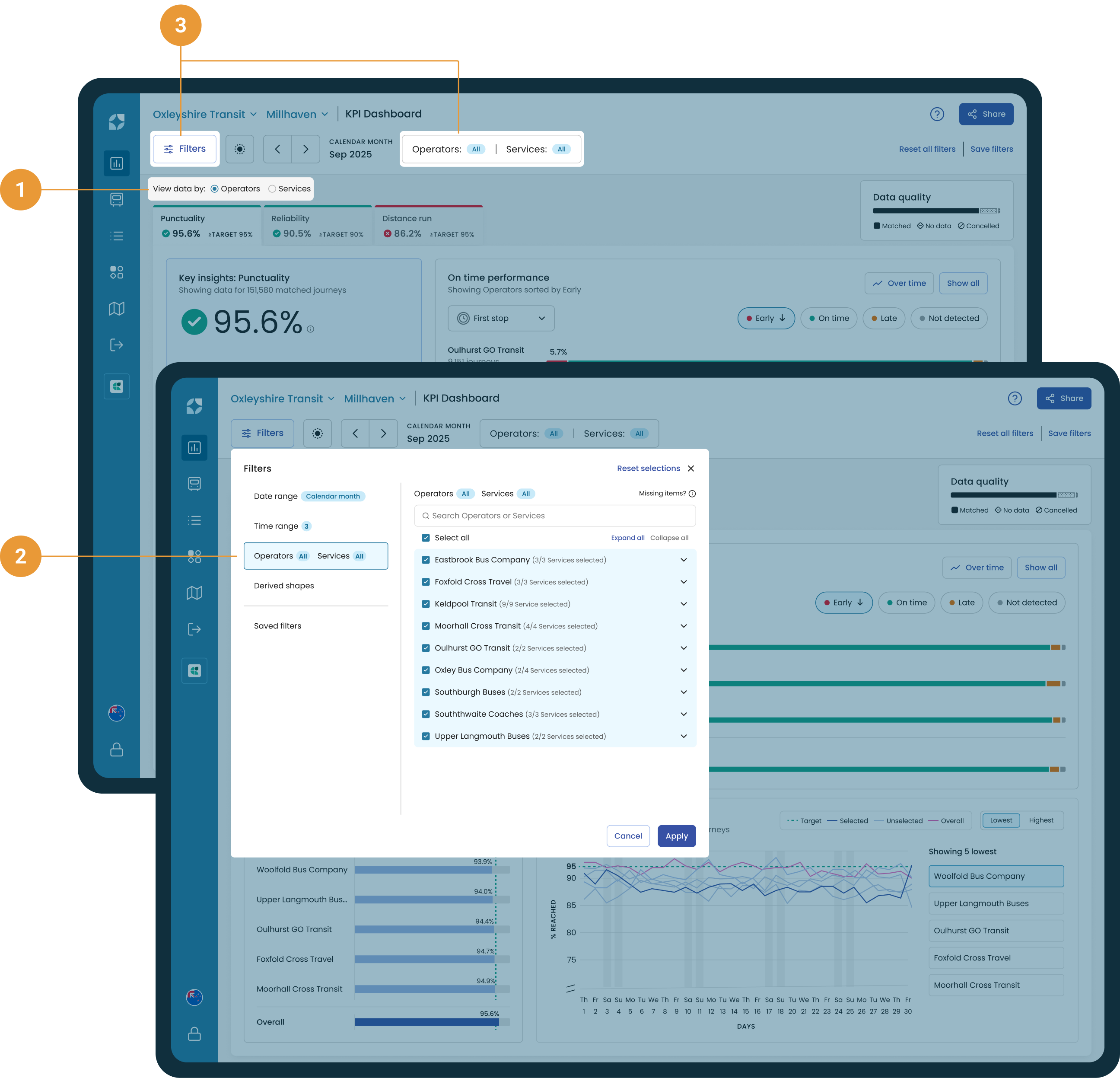
Filtering operators and services
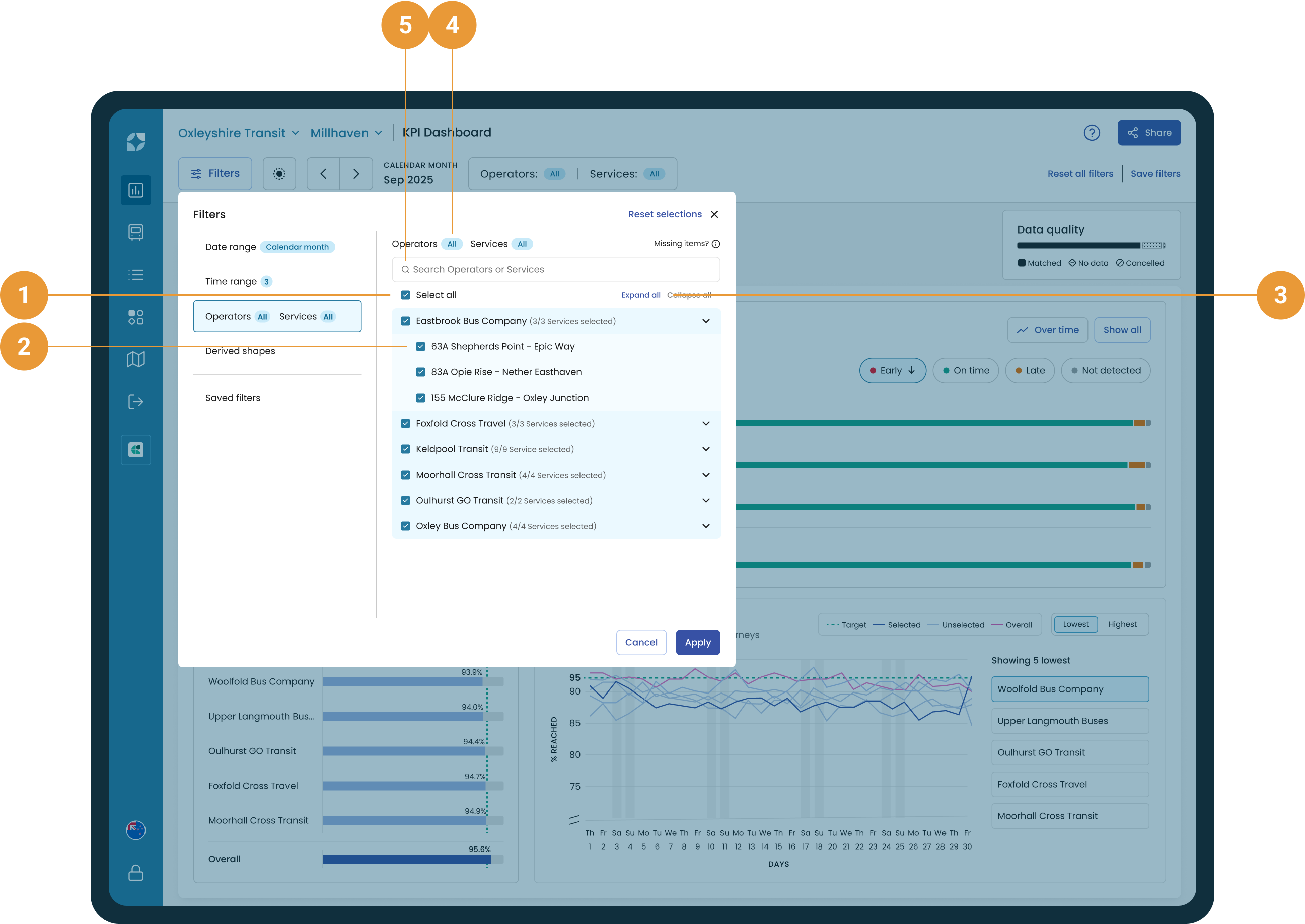
Filter to whichever Operator(s) and/or Service(s) you want to view data for by selecting them from the list available in the filter hub. The Operators/Services filter includes:
-
Select all (1) - By default all operators and services are selected. Unchecking “Select all” will deselect all operators and services. This can be useful if you only want to select one service. Note that the checkbox will display “-” when a subset of operators and/or services is selected.
-
A nested list (2) - Services are listed within their associated Operator so you have context during your selection. If you select a subset of Services within an Operator, the checkbox next to the Operator will display “-” and the text alongside the Operator name will reflect the number of Services you have selected.
-
Expand all / Collapse all (3) - By default the list is collapsed but you can switch between either an expanded list (showing all list items) or collapse (showing only operators).
-
A badge summarising your selection (4) - Since all Operators and Services are selected by default, the badges will display “All” by default. As you filter Operators and Services, the number within the badges will reflect how many Operators and Services have been selected. These badges will also be shown in the Operators/Services filter within the filter panel.
-
Search bar (5) - The ability to search for a specific operator or service by name. The list will update to only show those items that match your text search.
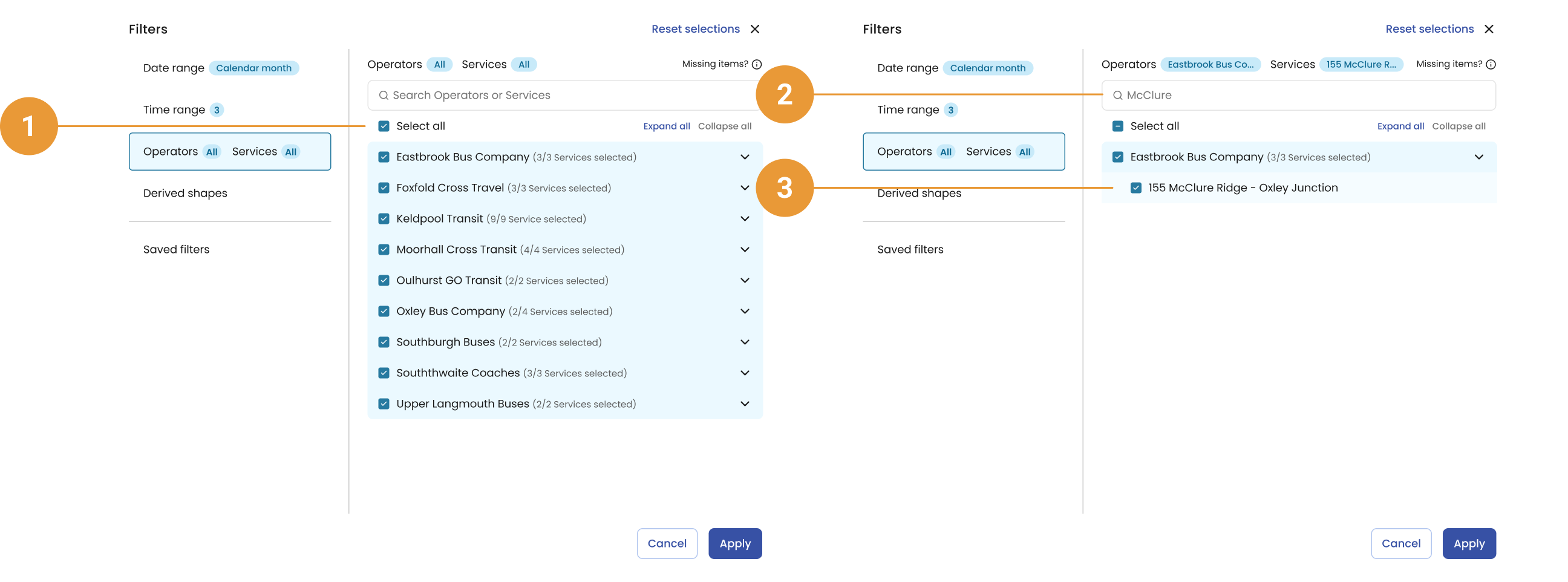
Example: Select a single service
-
Open the Operators/Services filter
-
Uncheck “Select All” (1)
-
Use the search bar to find the Service of interest (2)
-
Select the Service (3)