
Derived shapes unlock distance reporting for customers whose GTFS data doesn't include the distance information Mosaiq Insights needs. When derived shapes is on, Mosaiq Insights automatically generates a shape file and uses it to calculate the distance between stops, giving you access to the same distance metrics and reporting experience as customers who provide that data directly.
Derived shape status

The derived shapes button is visible in the filter panel for customers whose GTFS data doesn't include all required fields to calculate distance metrics (1). The icon reflects the current state, so you can see at a glance whether derived shapes are on or off.
If your GTFS upload contains partial shape data, we will fill any gaps with derived shapes where possible.
Turning derived shapes on or off
To access the derived shapes toggle, select the derived shapes button in the filter panel. This opens the filter hub on the Derived shapes tab.
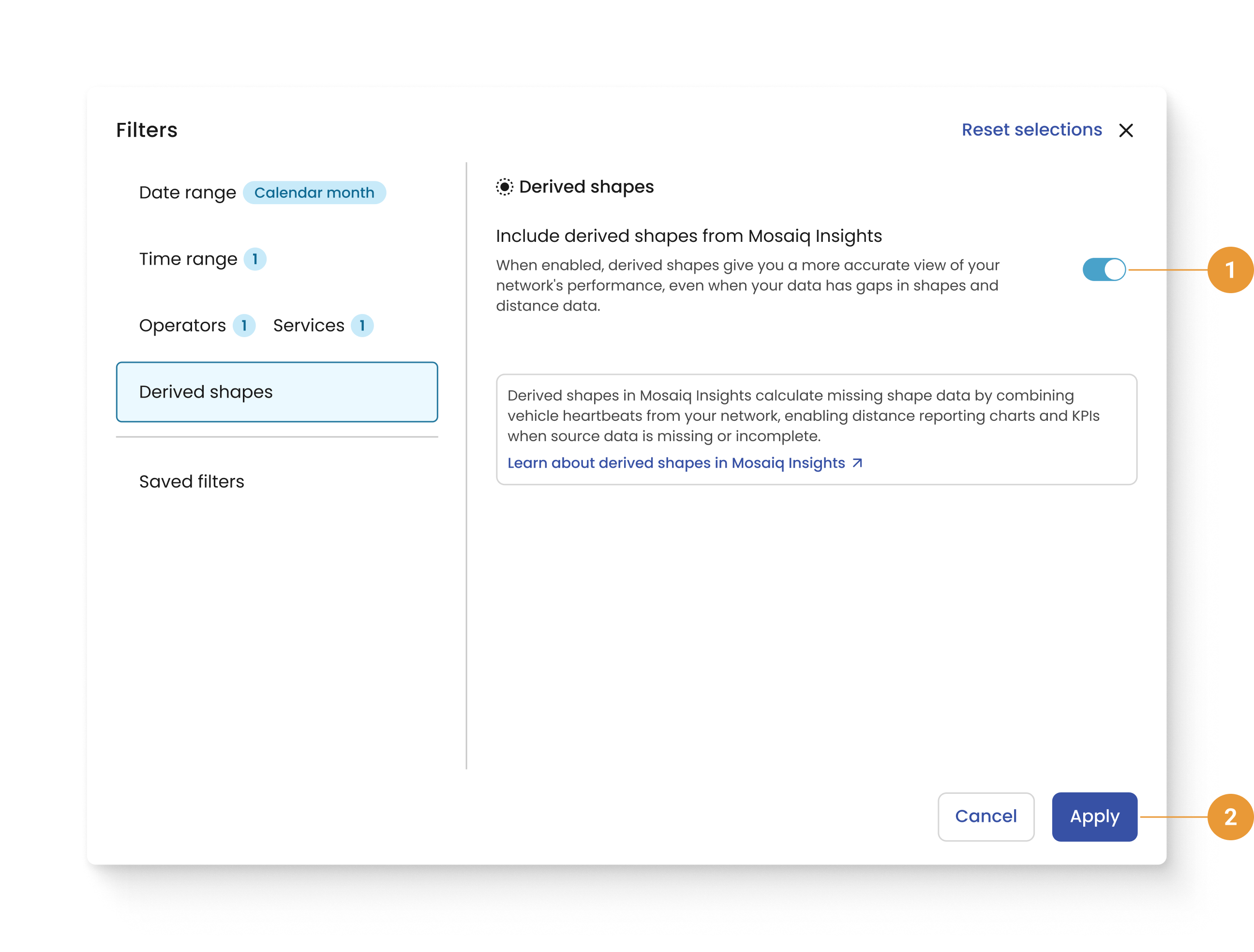
From the Derived shapes tab:
-
Select the toggle to turn derived shapes on or off (1).
-
Select Apply to save your preference, or Reset selections to revert to the default setting (2).
Derived shapes is turned on by default.
What changes when derived shapes is on
When derived shapes is on, distance data appears across all distance metrics in Mosaiq Insights, including charts, tables, and KPI widgets. Derived shapes are also visible in the:
-
Network map – derived shapes appear as route lines across your network. See Network map for more detail.
-
Journey view – derived shapes are visible for individual journeys. The left-hand panel indicates when the shape you are viewing is derived. See Journey view for more detail.
When derived shapes is toggled off, all distance metrics will show no data and shapes will not appear in either view.